


Video Background Remover
3.3313.00 Reviews
App Specs
- Version
- 4.0.0
- Updated On
- License
- Free
- Downloads
- 1,000,000+
- Developer
- MARC APPS
- Categories
- Beauty
- Platform
- Android, iOS
Screenshots



 Analysis by AppCompare
I judge a background-editing app less by the first dramatic cutout than by whether it still helps after the novelty wears off. Removing a setting can make a quick clip feel fresh, but the real test is whether the result looks good enough to share and the editing process is simple enough to repeat. Video Background Remover is built around that practical idea: separate a person or other subject from the scene, then give the video a different backdrop.
That focus makes it easy to understand what the app is for, but it also sets a clear boundary. I would reach for it when the background is distracting and the subject is easy to see. I would not treat it as a complete replacement for a desktop editor or a carefully lit green-screen setup. A clean, convincing result depends on the original footage as much as on the editing tool.
The first-week appeal: quick experiments with a clear purpose
In the first few sessions, the appeal is the direct workflow. Choose a clip, try separating its subject from the surroundings, and see whether another background makes the video more useful. That is a satisfying way to experiment because the change is obvious: a plain room can become a more neutral presentation setting, or a casual recording can be given a playful visual backdrop.
A realistic everyday use would be recording a short update at home when the room behind you is untidy. Rather than reshooting immediately, you could try isolating yourself and placing a simple image behind the clip. I would keep that background still and uncluttered. A busy replacement scene can draw attention to imperfect edges and make the edit feel less believable, while a restrained choice lets the speaker remain the focus.
This is also a reasonable app for someone who makes occasional social clips and does not want to learn a large editing suite just to change one scene. The main decision is visual, not technical: does the cutout look natural enough for the intended audience? If the edges are distracting, changing the background again may not solve the problem; improving the source clip is usually the better next step.
Month-to-month value: a useful tool, not a daily destination
The recurring value is strongest when background removal solves a problem that comes up more than once. A small business owner making a quick product introduction, a hobbyist recording demonstrations, or a teacher preparing a short explanation may all have reasons to reuse the same approach. In those cases, the app can earn a place in a lightweight editing routine without becoming the only tool in it.
I would think of it as a specialist utility rather than an app to open every day. If most of your videos already have suitable surroundings, its central feature will naturally matter less. If you regularly record in changing locations, however, a quick background swap can rescue footage that would otherwise need to be discarded or filmed again. The app’s value depends on that repeating need, not on how many effects you can try in one sitting.
Worth Reading Before You Choose

EA SPORTS FC Mobile 26 Is a Bigger Football Game, but It Takes Time

Flipboard Shows What News Apps Must Do Beyond the Feed

Switching to Android Auto Means Rethinking Your Driving Routine

Google Calendar Makes a Crowded Week Easier to Manage

Ludo King Makes the Most of the Minutes Between Plans

Baby Panda World Brings Quick Play to Modern Phones, but Its Game Library Feels Busy
Compared with a general mobile video editor, a dedicated background-removal workflow is appealing when the subject separation is the main job. A broader editor may offer more control over a finished timeline, sound, titles, and detailed adjustments; it may also ask you to navigate more tools than you need for a simple cutout. For precise compositing or a polished campaign, I would favor a more comprehensive editor or a properly prepared green-screen recording. For a quick experiment on a phone, this app’s narrower purpose can be an advantage.
Maintenance, fatigue, and the habits that keep results usable
The maintenance burden is mostly in the footage and project decisions, not in building an elaborate editing routine. Before recording, leave a little space between yourself and the background, keep your outline clear, and avoid movements that blend into nearby objects. These are modest habits, but they give the separation process an easier job. A patterned shirt against a patterned wall, for example, can make the subject harder to distinguish than a simple, high-contrast setup.
It also helps to choose the replacement background before trying a string of effects. A plain color or calm image is easier to judge than several visually busy options, and it makes flaws around hair, shoulders, or moving hands more apparent. That may sound less exciting, but it is a useful test: if the cutout looks convincing against a simple backdrop, it is more likely to hold up when you use the video elsewhere.
The likely source of fatigue is repetition. Trying many backdrops can be fun initially, but novelty does not necessarily improve a clip. If an edit takes longer than recording again in a better spot, reshooting is the sensible choice. Likewise, footage with motion blur, poor separation, or a complicated outline is not a good candidate for a fast background swap. This is where a different approach—better lighting, a simpler scene, or a dedicated editor—can save time.
There is a practical question about what to do after editing: I would review the exported result from beginning to end before sharing it, rather than judging only the preview or opening frame. Check moving edges, transitions, and any moment when the subject crosses a similar-colored area. A cutout can look fine while still, then become noticeably rough during movement. That final watch-through is a small habit that prevents an avoidable surprise.
For someone deciding whether to try it, the basic expectations are straightforward. It is a free beauty-category app from MARC APPS, suitable for everyone, and it has reached over a million installs. Its average rating is 3.1 from around ten thousand ratings, with roughly three hundred written reviews, so I would approach it as a useful but not universally loved tool rather than assume every edit will be effortless. It first appeared on October 22, 2021, and its current version is 4.0.0; Android users need version 6.0 or later.
One point worth keeping in mind is that a background remover cannot make every source clip equally workable. If you want a dependable result for a presentation, record a short test first and inspect the outline before filming a longer take. If the first few seconds look rough, adjust the recording setup rather than investing time in the full clip. For an occasional personal video, you may be happy with a playful result; for client-facing work, I would use a stricter standard and compare the output with a more controlled editing workflow.
Getting Started with Video Background Remover
First things first, let's talk about the user interface. When I launched the app, I was greeted with a sleek and intuitive design. Everything felt exactly where it should be, which is always a relief when you're eager to jump straight into editing. Whether you're a pro or a newbie, navigating through Video Background Remover is a breeze.
Installation was a snap. A quick download and I was ready to roll. Once you're in, the home screen gives you easy access to all your editing needs. I loved how it didn’t bombard me with ads right off the bat. A huge thumbs up for that.
Features That Stand Out
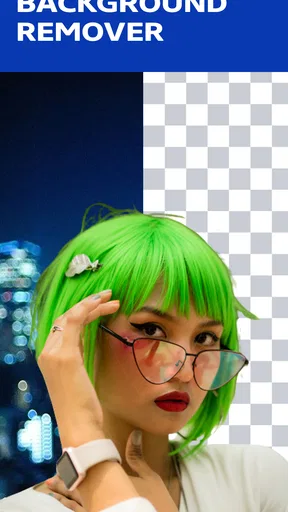
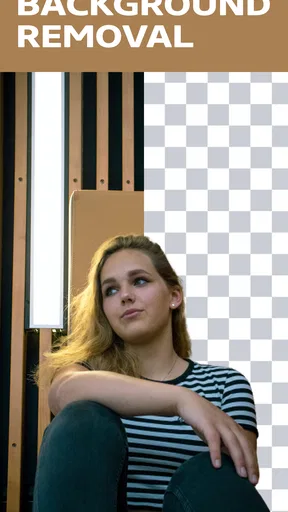
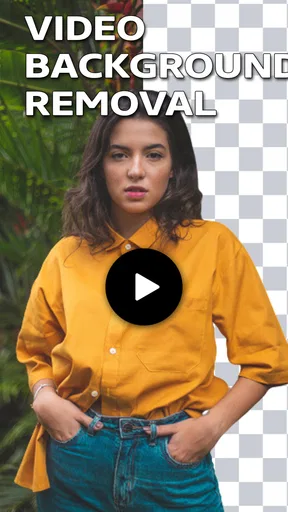
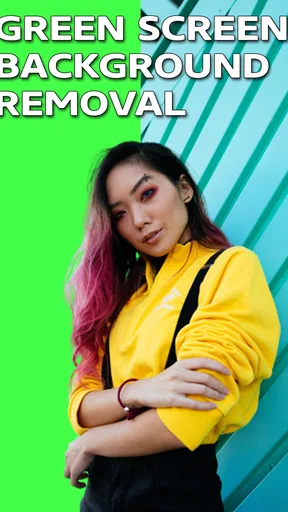
When it comes to features, this app is a powerhouse. The main attraction, of course, is the ability to remove video backgrounds with just a tap. And let me tell you, it works like magic. Simply select your video, and let the app do its thing. I was amazed at how accurately it distinguished between the subject and the background. It’s like having a green screen without actually needing one.
Beyond background removal, you can also add new backgrounds from a library of options, or upload your own images and videos. This opens up a world of creativity—whether you want to transport yourself to a beach in Bali or a bustling cityscape, the choice is yours.
Oh, and did I mention the editing tools? You can trim, split, and merge clips seamlessly. The app also offers filters and effects to add that extra pizzazz to your videos. It's like having a mini editing studio right in your pocket.
Performance and Usability
Now, you might be wondering about performance. After all, a fancy feature set means nothing if the app lags. Fear not! Video Background Remover runs smoothly, even with high-resolution videos. I tested it with a variety of clips, and the processing time was impressively quick. Whether you’re working on a short clip for social media or a longer video, the app handles it all without a hitch.
Another aspect worth mentioning is the app's ability to save projects. This means you can work on multiple videos simultaneously and return to them whenever you like. This feature is a lifesaver for those who juggle multiple projects at once.
Final Thoughts
All in all, Video Background Remover is a game-changer for anyone looking to up their video editing game. It combines ease of use with powerful features, making it a must-have for content creators of all levels. Whether you're creating content for personal use or professional projects, this app has you covered.
With its seamless background removal, creative options for new backgrounds, and a range of editing tools, the app offers everything you need to make your videos stand out. Plus, its performance is top-notch, ensuring you spend more time creating and less time waiting.
So, if you’re ready to transform your videos and unleash your creativity, give it a try. Trust me, you won’t regret it!
Who will get the most from it?
I see the best fit as someone who already has a specific clip in mind and wants to change its setting without taking on a complicated editing project. A creator making a quick talking-head post, a parent preparing a playful greeting, or a student putting together a simple visual explanation can all benefit when the subject is clear and the background is not doing important work. The app is less compelling for someone who only edits occasionally and is already satisfied with ordinary trimming and captions.
It is also not the right choice when the background itself carries meaning. Removing a real location can take away context, and replacing it with an unrelated image may make a video feel misleading. I would keep the original setting for travel memories, interviews where the environment matters, or demonstrations that depend on showing the actual workspace. The tool is most useful when the backdrop is a distraction rather than part of the story.
A practical workflow for cleaner edits
For a clip I planned to share, I would start with a short test segment rather than import a long recording and commit to a full edit. I would choose a background that matches the lighting and general mood of the subject, then check whether the person appears grounded rather than pasted on. A bright outdoor image behind a dim indoor recording, for example, can look odd even if the cutout is technically neat. Matching the visual tone matters as much as picking an attractive scene.
When using a custom image or video, I would avoid placing important details directly behind the subject’s head or hands. That keeps the composition readable and reduces the chance that the new scene competes with what the person is saying or doing. If a clip includes several people, I would test the busiest moment, not just the opening frame: overlapping shoulders and quick movement are more demanding than a single person standing still.
For a series of short clips, consistency is another worthwhile trade-off. Reusing a restrained background can make separate recordings feel like they belong together, while changing scenes every time may make the set look scattered. The choice is not about using the most eye-catching option; it is about whether the background supports the purpose of the video. This is a small editorial decision that can make a basic edit look more deliberate.
What to expect before making it a habit
Because the app is free, trying it on a low-stakes clip is an easy way to see whether its approach suits your needs. I would not interpret that as a promise that every source video will come out cleanly. The useful question is whether it handles the kind of footage you actually make. Test one ordinary recording from your usual environment, then decide whether the time saved is worth keeping the app in your routine.
The broader lesson is that background replacement is a finishing choice, not a substitute for a good recording. It cannot turn a poorly framed or visually confusing shot into a professional one simply by changing what sits behind the subject. If you frequently need precise edges, consistent lighting, and dependable output for paid work, a controlled filming setup and a more flexible editor are safer choices. If you mainly want a quick way to experiment or tidy up occasional clips, a focused mobile tool is much easier to justify.
My long-term view is measured: the app can earn space on a phone when background removal solves a recurring, specific problem, but I would not keep opening it just for novelty. Its value comes from a handful of useful edits made with suitable footage, not from replacing every other video tool. If that describes your needs, it is worth trying on a short clip; if you need detailed control or consistently polished commercial results, I would start with a different workflow.
Pros
- Easy to use interface for quick edits.
- Supports multiple video formats.
- Fast processing with minimal lag.
- Includes basic editing tools.
- No watermark on exported videos.
Cons
- Limited advanced editing features.
- Free version has ads.
- Occasional crashes on large files.
- Limited color correction options.
- Subscription required for premium features.
FAQs for Video Background Remover
What is Video Background Remover and how does it work?
Video Background Remover is an app designed to automatically remove backgrounds from your videos without the need for a green screen. Using advanced AI technology, it detects the foreground subject and separates it from the background, allowing you to replace it with a different image or video, or simply keep it transparent.
Is Video Background Remover easy to use for beginners?
Yes, Video Background Remover is user-friendly and designed with beginners in mind. The app features an intuitive interface with simple steps to upload videos, select the areas to remove, and apply new backgrounds. Comprehensive tutorials and guides are also available to help users get started quickly.
What file formats does Video Background Remover support?
Video Background Remover supports a wide range of video formats, including MP4, MOV, and AVI. This ensures compatibility with most video files, allowing users to easily import and export their projects without worrying about format restrictions. Always check the app's latest updates for added format support.
Are there any limitations on video length or quality?
The app may impose limitations on video length or quality depending on the version used. The free version might support shorter videos or lower resolutions, while premium versions typically offer higher quality processing and longer video support. It’s advisable to check the specific version details before downloading.
Is my data secure when using Video Background Remover?
Video Background Remover takes user privacy seriously and implements security measures to protect your data. Videos are processed either locally on your device or securely in the cloud, depending on the app’s settings. Always review the app's privacy policy to understand how your data is handled.


